Mapping
The mapping tab defines the output schema: which columns are written, in what order, and how each is filled. The YAML side is covered in the Mapping & codelists reference, and every value source is explained with examples in Mapping by example.
No mapping = everything
With no mapping rows at all, every upstream column (base columns plus every pulled field) is written as-is. Add rows when you want to choose, rename, reorder or compute columns.
The mapping applies to every output layer of the pipeline. To give one layer different columns, see Per-layer mapping.
Layout
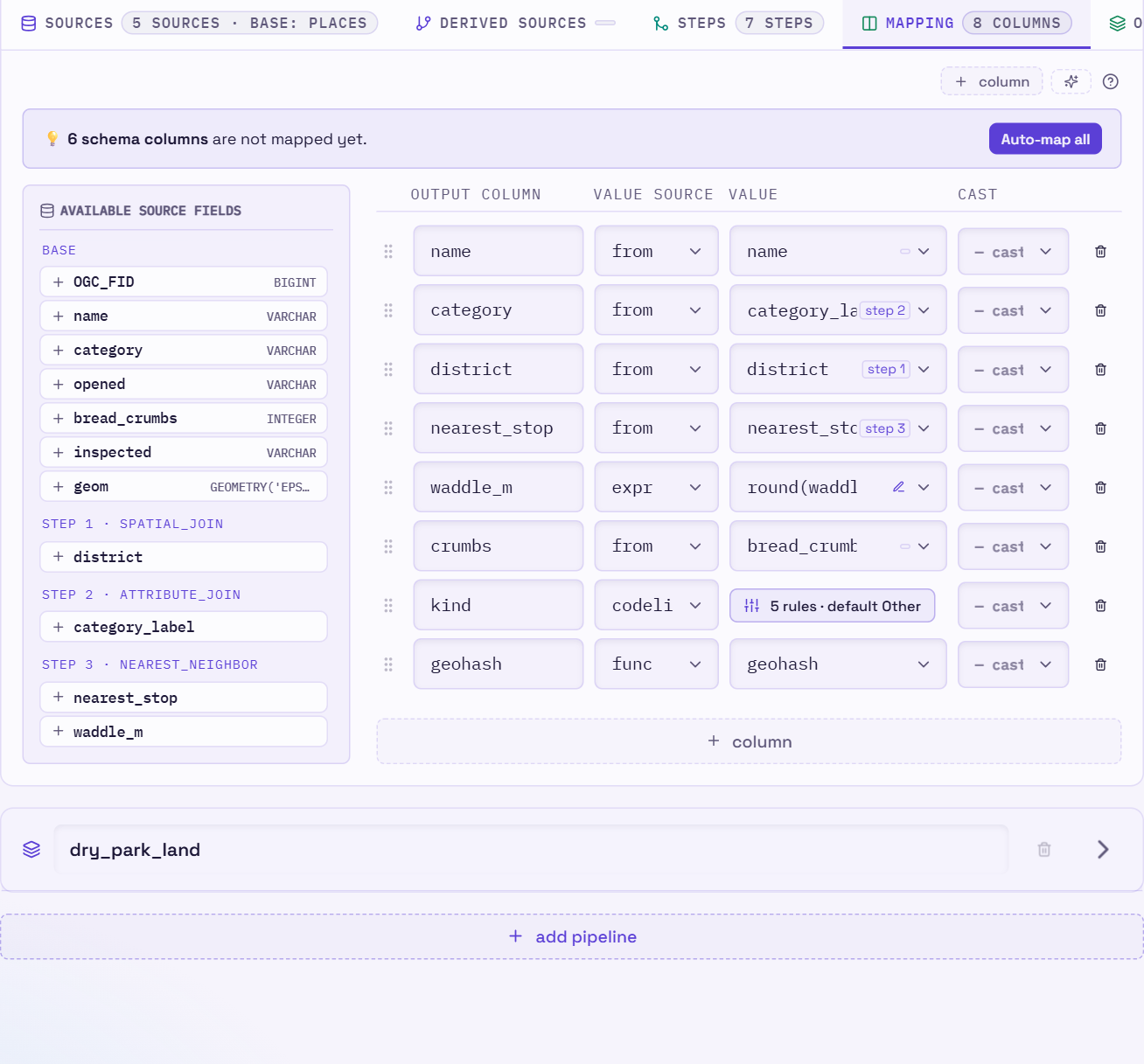
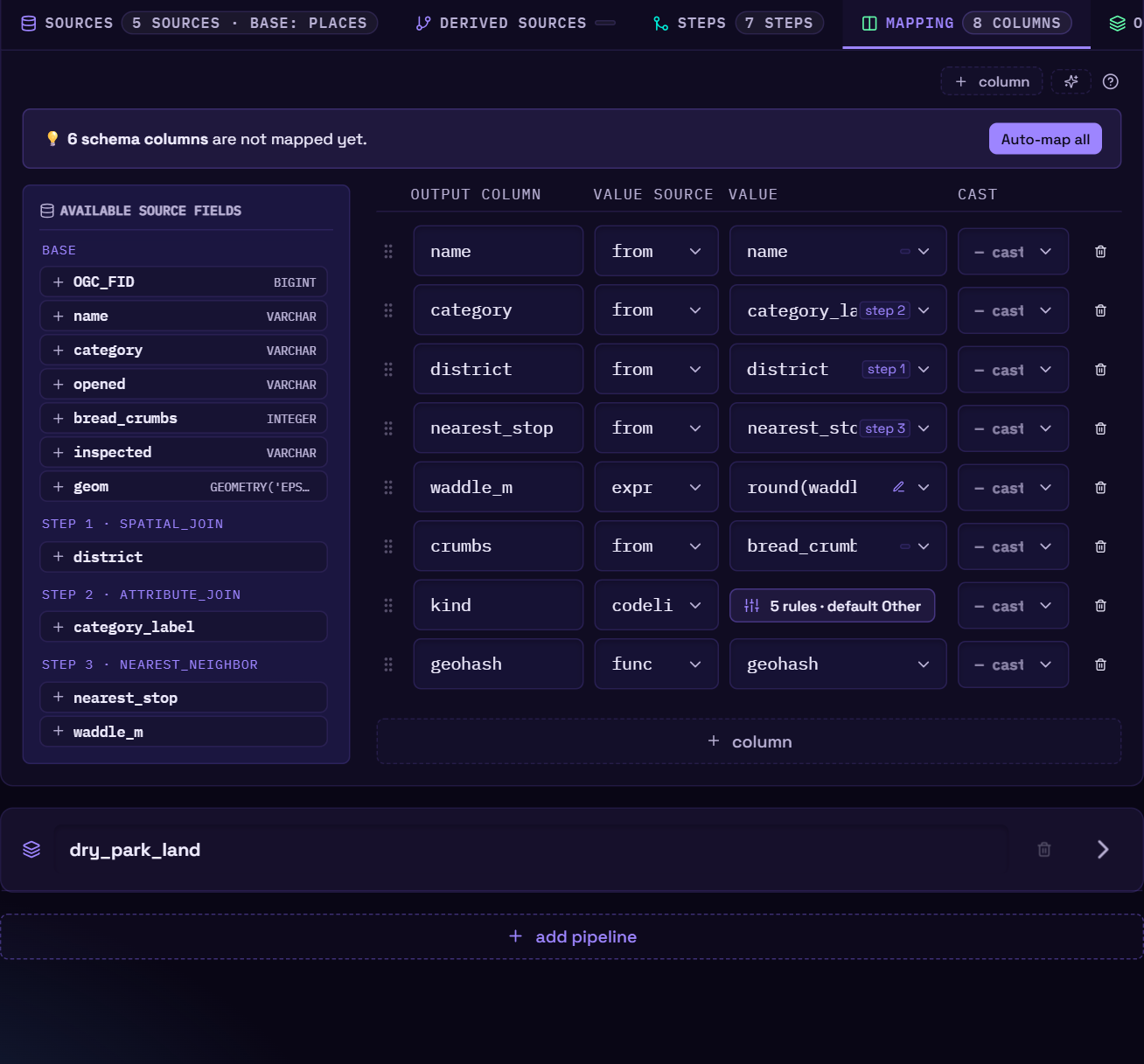
On the left is the Available Source Fields pool: every column available after the last
step, grouped by where each column comes from (base, then step 1 · spatial_join and
so on for fields pulled in by join steps). In a long list the heading of the group you're
scrolling through stays at the top. Hover a field to see its full name and type. A from row's
column dropdown is grouped the same way. On the right is the mapping grid, one row
per output column:
| output column | value source | value | cast | |
|---|---|---|---|---|
name |
from |
duck_name |
🗑 | |
id |
func |
uuid |
🗑 | |
crumbs |
from |
bread_crumbs |
INTEGER |
🗑 |
Building the mapping quickly
- Click a field in the pool to add a
fromrow for it. - ✨ auto-map maps every available column in one go. It counts as one action, so a single Ctrl+Z undoes it.
- + column adds an empty row.
- Reorder rows by dragging the grip handle, or with Alt+↑/↓. Row order is column order in the output.
Value sources
| value source | value field | example |
|---|---|---|
from |
pick an upstream column | duck_name |
const |
type a literal | Annual Duck Census |
expr |
a SQL expression, edited in the expression builder | upper(duck_name) |
func |
pick a built-in | uuid, seq, now, today, lon, lat, x, y, mgrs, geohash, wkb, wkt, geom_type, area, length |
codelist |
opens the codelist panel | see below |
cast wraps the value in TRY_CAST(… AS type). The list offers INTEGER, BIGINT,
DOUBLE, VARCHAR, BOOLEAN, DATE and TIMESTAMP, and you can type any other DuckDB type.
Values that can't be cast become NULL rather than failing the run: cast: DOUBLE on
1 234,5 gives NULL, so use the expression builder's Convert snippet for numbers with a
decimal comma. — no cast — at the top
of the list removes the cast.
Expression builder
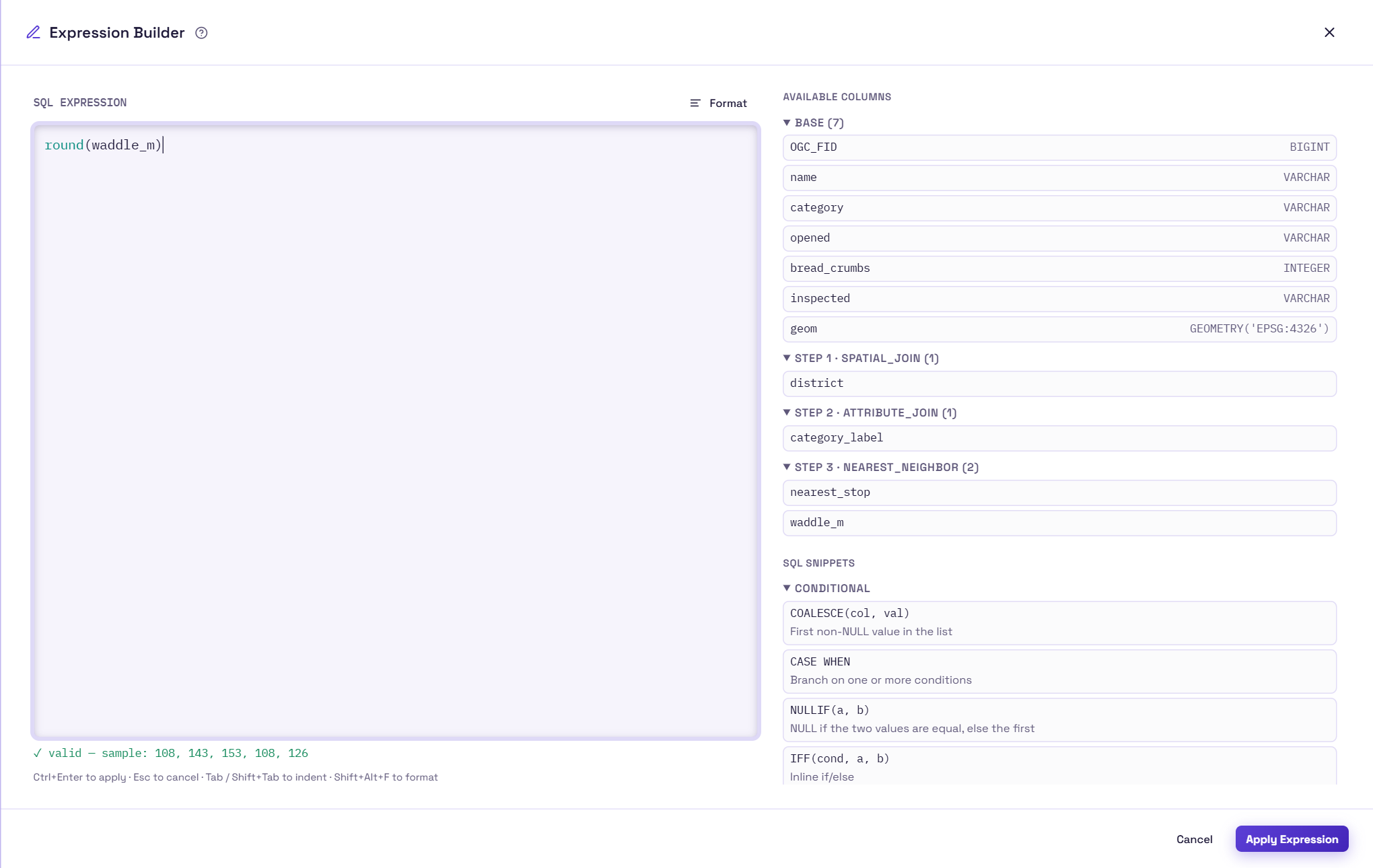
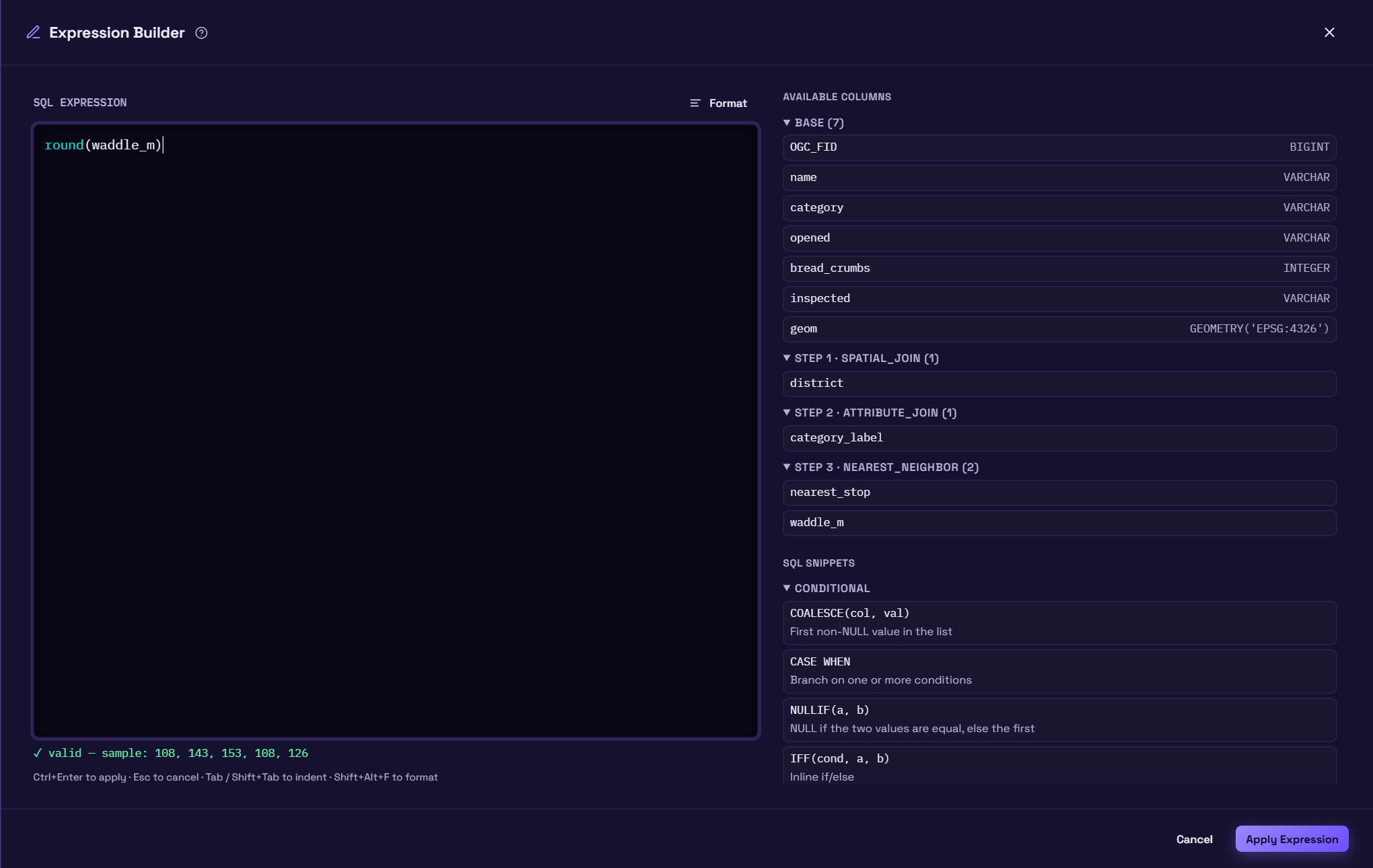
Choosing expr and clicking the pencil icon opens the expression builder, a side drawer with:
- A SQL editor with syntax highlighting, auto-closing brackets/quotes and column/function autocomplete. Tab indents the line (or every selected line) and Shift+Tab outdents; while the autocomplete list is open, Tab picks the suggestion instead.
- Available Columns, grouped like the field pool (base, step 1 · spatial_join, …). Click a column to insert it.
- SQL Snippets: common DuckDB functions by category (conditional, string, numeric, date,
…), such as
LEAST/GREATEST,CONCAT_WS,LPAD,REGEXP_EXTRACTandDATE_DIFF. Click one to insert it. Convert has what a cast can't do on its own: numbers written with a decimal comma (1 234,5),ja/neias true/false, and dates in milliseconds since 1970, as ArcGIS REST services send them. Geometry (new shape) has the functions that return a geometry (ST_Boundary,ST_ConvexHull,ST_PointOnSurface, …), for replacinggeomin an Update Attributes step. - A live check that runs the expression against real sample rows from your pipeline and shows either sample results or the SQL error. A syntax error or unknown column shows at once. Sample results need the pipeline's steps to run on a few rows, which on a slow pipeline takes some seconds; the check counts the seconds meanwhile. It doesn't stop or delay the main preview.
Format (Shift+Alt+F) tidies the expression: keywords in
upper case, one space between words, and line breaks where they help. A CASE with two or
more WHENs gets one line per branch, a function call too long for one line gets one
argument per line, and a condition that's still too long breaks before each AND / OR.
Short expressions stay on one line. Ctrl+Z undoes it. An expression
with unbalanced brackets or a -- comment is left as it is.
Ctrl+Enter applies the expression and Esc cancels. Multi-line expressions keep their formatting in the saved YAML.
Codelist panel
Choosing codelist and clicking configure rules opens a panel for translating one column's
values. Set the source column and whether matching is case-insensitive (the default),
then pick a mode:
An ordered list of rules. Each rule has a type (match for an exact value, like for a SQL
LIKE pattern such as %oak%, regex, or is blank/null), a pattern and an output value.
Rules are evaluated top to bottom and the first match wins, so use the arrows to put
specific rules above general ones. Add a default for values no rule matches (leave it
empty for NULL).
Point at a CSV file and name its key column (matched against the source column) and value column (the output). Use this for code tables with hundreds of entries.
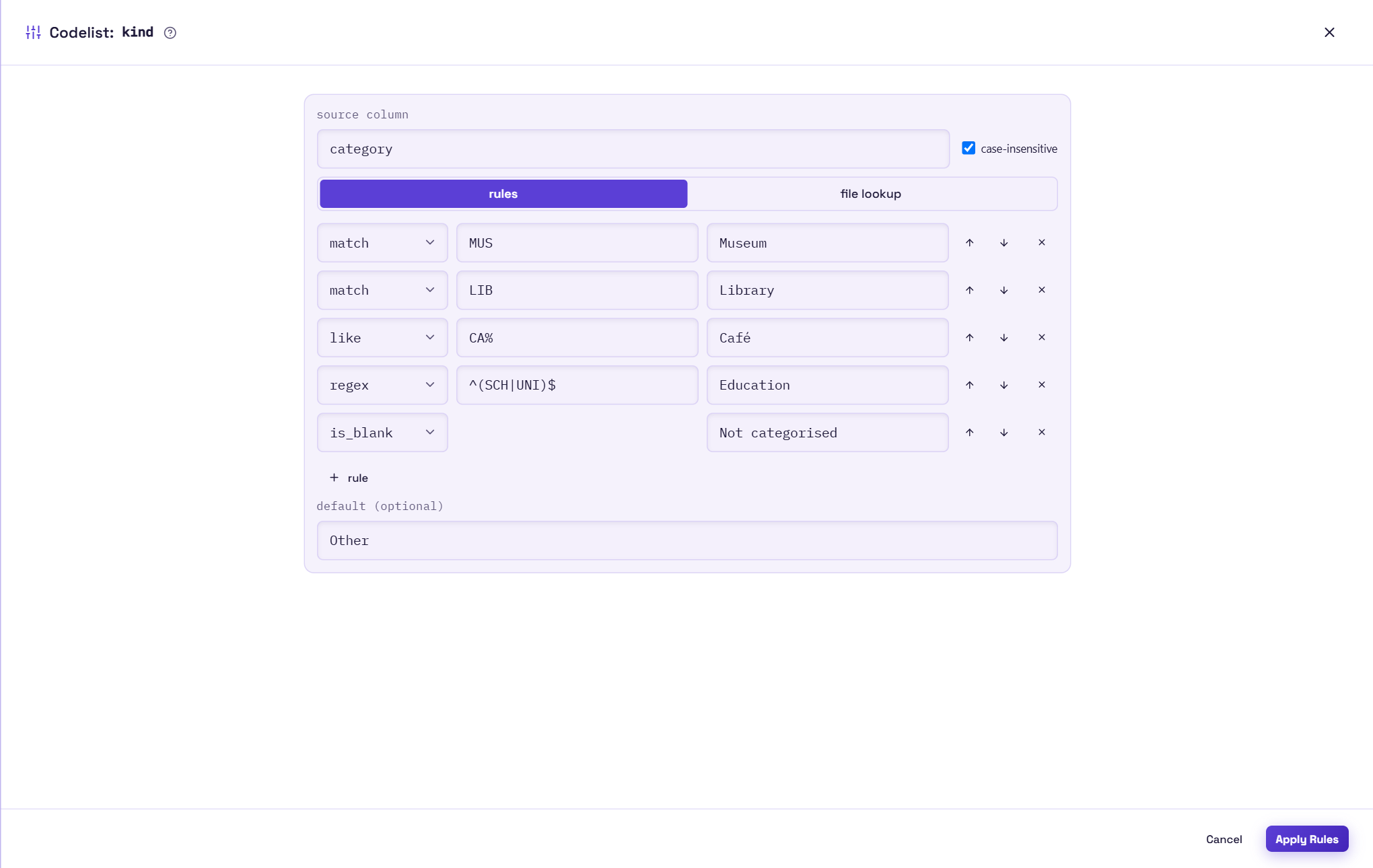
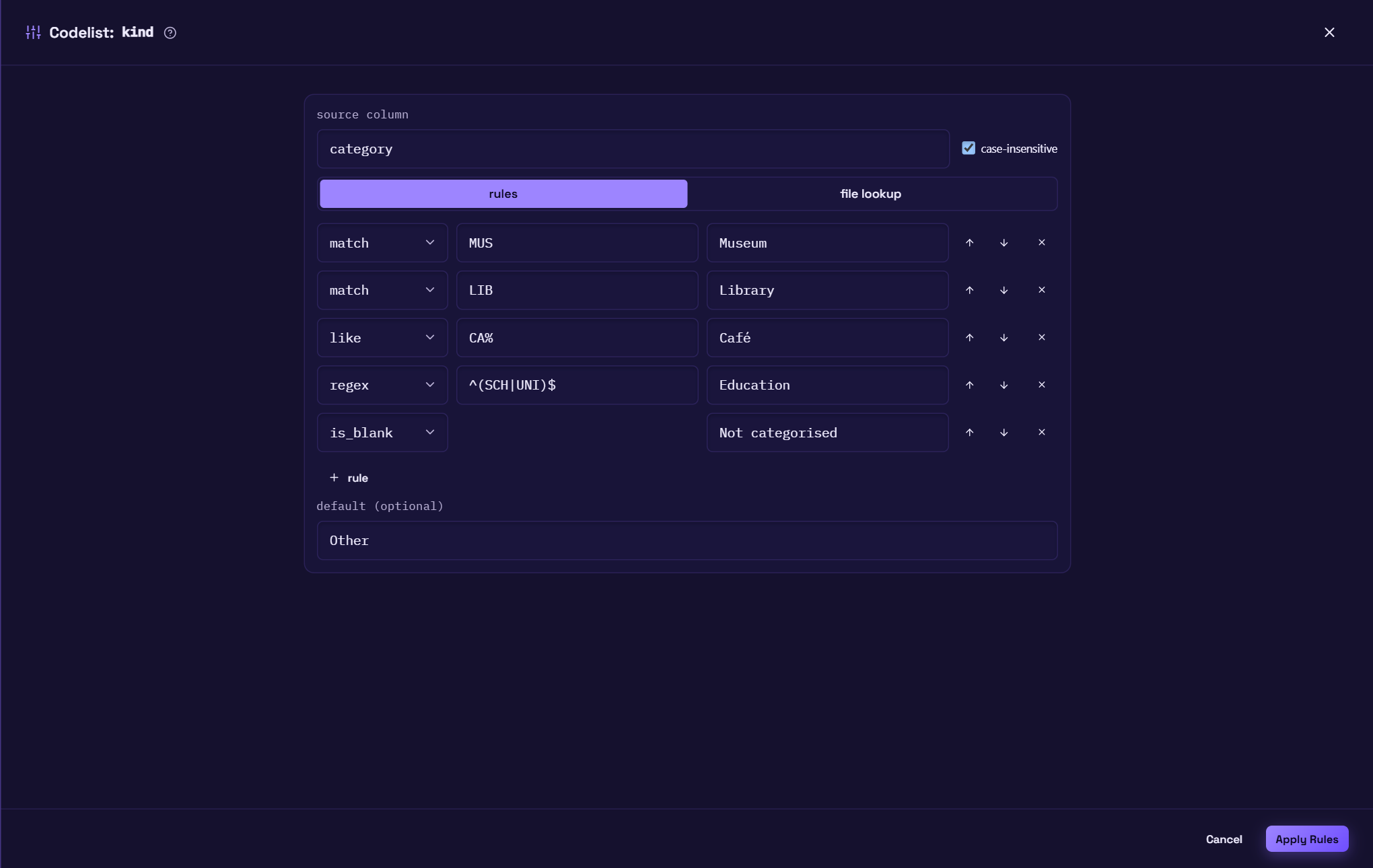
Click Apply Rules to save. The mapping row's button then summarises what's configured
(for example 3 rules · default Other or lookup: species.csv).